GTA 6 stream stuttering? What to test before buying equipment
Network, rendering and encoding problems need different checks. Use this short workflow to find where your GTA VI stream is failing.
Voices depend on your browser and device; some require internet access. Code blocks are not read aloud.
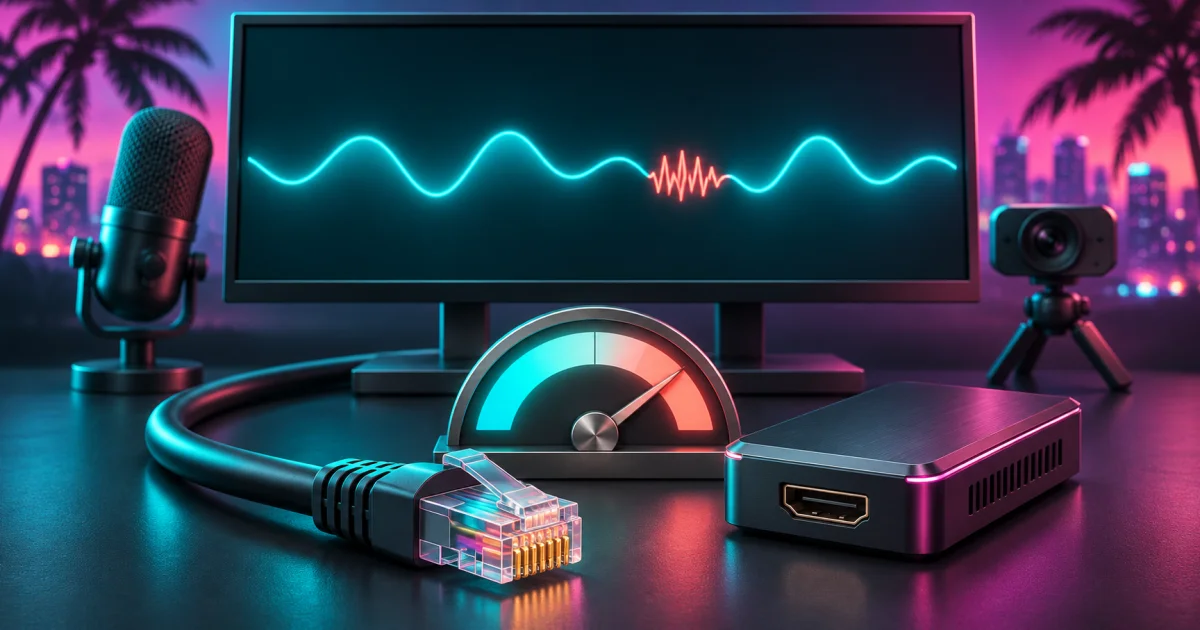
On November 21, PC Gamer reported figures shared by Comcast: GTA VI represented almost a quarter of its network traffic at the launch-day peak on November 19. That refers to Comcast's network, not the whole internet. It does not, by itself, explain why your own stream is stuttering.
If your broadcast looks bad, start with diagnosis. Buying equipment before identifying the problem could leave you with the same stream and a new bill.
Find where the picture first breaks down
The setup here is GTA VI running on a console, with its picture reaching a computer that broadcasts through OBS. Watch three points: the console display, the OBS preview and the video received by a viewer.
Write down where the problem first appears. If it is already visible on the console, investigate that stage. If the game is smooth but the broadcast deteriorates, move on to capture and OBS. Ask someone to watch using another connection if possible.
Keep three indicators separate
Open OBS's statistics panel and monitor:
- Dropped Frames (Network): frames lost while sending over the network.
- Rendering Lag: difficulty composing the scene.
- Encoding Lag: difficulty encoding the video.
OBS documents connection troubleshooting separately from performance troubleshooting. Record which counter increases to choose your next test.
Change one thing at a time
For network losses: try a cable, pause downloads and synchronization, and lower the bitrate. Base it on stable upload capacity and platform limits, as OBS advises. Your broadband plan's advertised speed does not fully describe conditions at that moment.
For rendering or encoding problems: test a simple scene without animated overlays. Lower output resolution or try 30 frames per second. The OBS performance guide recommends reducing scene and output demands. Compare results before and after each change rather than changing everything together.
Build a repeatable test
My suggestion: use the same in-game scene for five minutes at your planned streaming time. Record connection type, resolution, frame rate, bitrate and which counter increased. Save the results before making another adjustment.
That record can become useful content too: “What fixed my GTA 6 stream on this setup.” Show the configuration and the complete test. Avoid presenting your bitrate as a universal recipe.
If you still need equipment, you will have a concrete purchasing question: which component addresses the bottleneck I measured? That answer is more useful than picking the largest number on the box.